Do you offer discounts to builders, dealers, or individual customers? CounterGo gives you three ways to discount a Quote:
- Account Discount: applied automatically to every Quote for that Account.
- Quote Discount: applied to a single Quote in Step 6.
- Miscellaneous Item: a negative line item your customer can see.
Account and Quote Discounts lower the Quote totals but do not show as a discount on the printed or emailed Quote. If you want your customer to see the discount, use a Miscellaneous Item, or add a text line to let them know.
ADD DISCOUNTS TO THE PRICE LIST
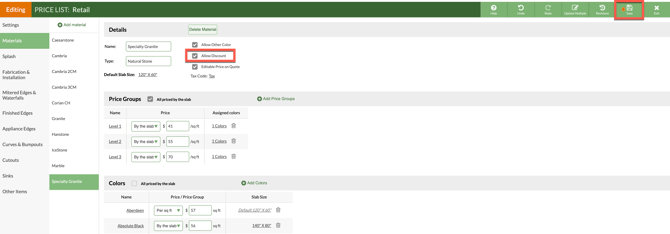
Account and Quote Discounts apply only to Price List items set to Allow Discount. By default, all items in a Price List allow Discounts. For example, you might discount fabrication but not material.
- From the left side navigation, click Price Lists > click the name of the Price List to update > click the Edit Price List button.
- Select the item to change.
- Check the box next to Allow Discount to allow Discounts, or uncheck it to prevent Discounts > Save.
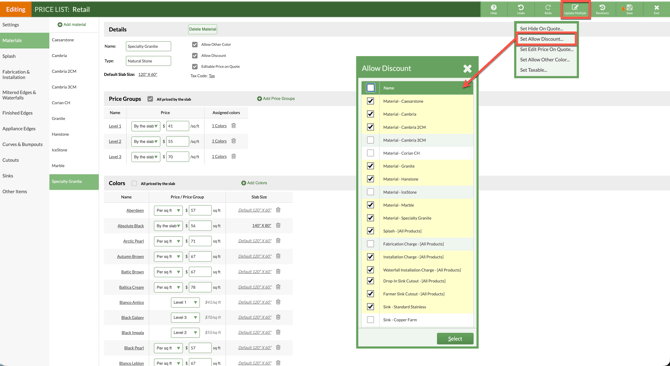
- To change several items at once, click the Update Multiple button > Set Allow Discount.
ADD AN ACCOUNT DISCOUNT
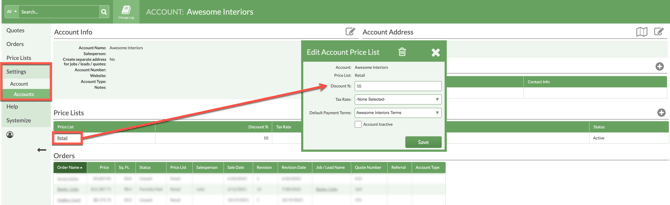
An Account Discount is added automatically every time you create a Quote for that Account. You can use one Price List for many Accounts, each with its own discount percentage.
- Go to Settings > Account > Accounts.
- Click on the Account to receive the automatic discount.
- Click on the name of the Price List.
- Enter the discount percentage for this Account > Save.
ADD A DISCOUNT TO ONE QUOTE
Note: Discounts are not applied to prices that are manually entered or edited in Step 6.
- Open the Quote and go to Step 6.
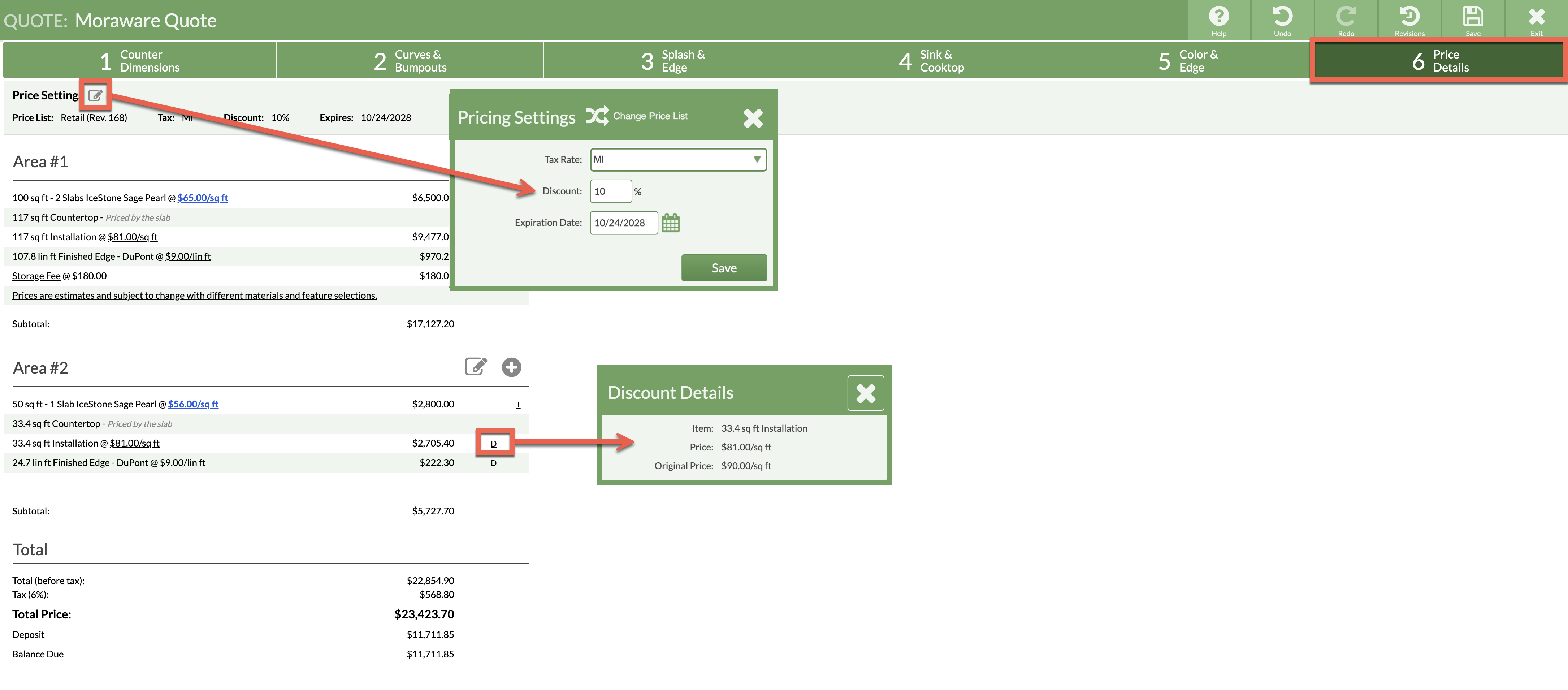
- In the Price Settings area at the top of the Quote, click the Edit icon.
- Enter the percentage in the Discount field. For example, enter 10 for a ten percent discount > Save.
- A D appears next to each line item that was discounted. Click the D to view the details.
LET CUSTOMERS KNOW ABOUT A DISCOUNT
-
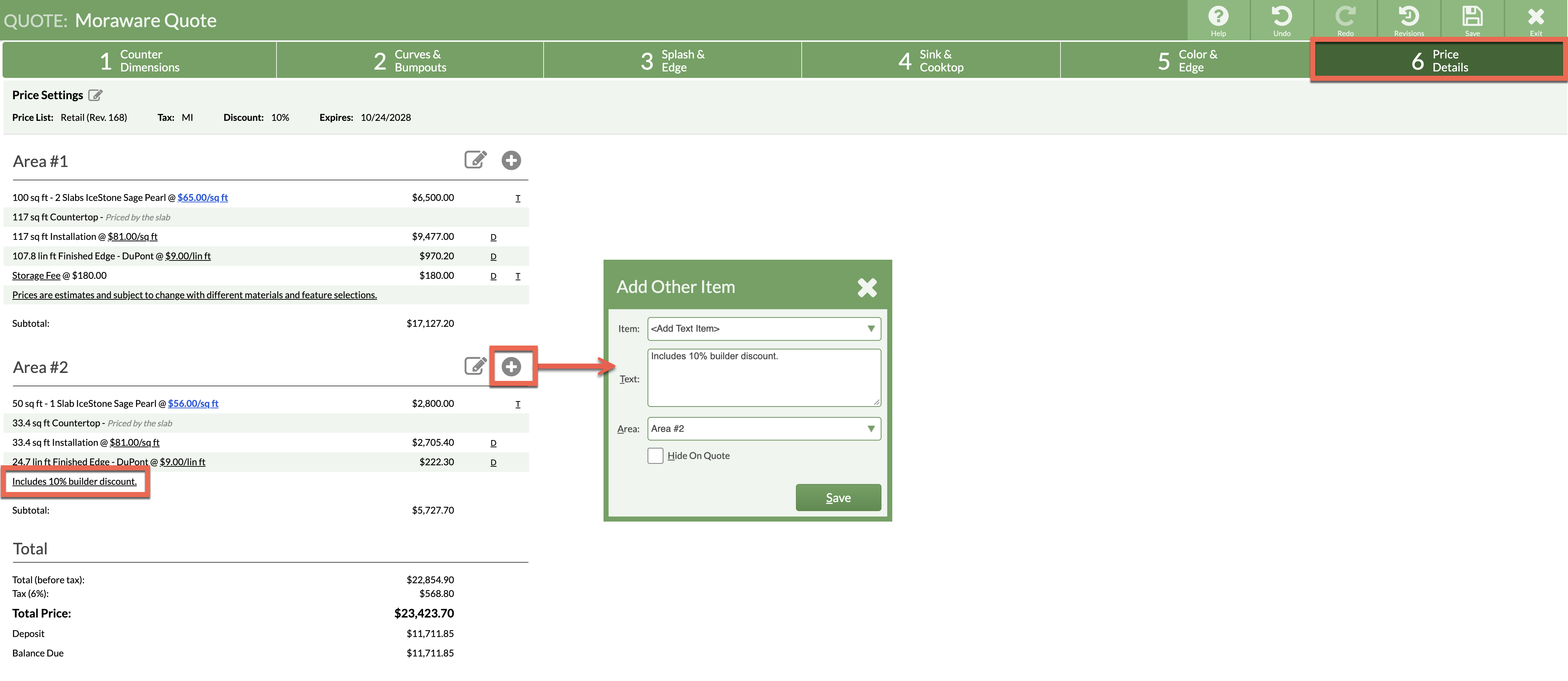
Account and Quote Discounts lower the totals without listing the discount. To keep using one of these methods and still let your customer know, add a text line to the Quote, such as "Includes 10% builder discount."
-
In Step 6, click on the Add Other Item icon next to any area.
-
Select Add Text Item > Enter text and select Area to place the text > Save.
ADD A DISCOUNT AS A MISCELLANEOUS ITEM
A Miscellaneous Item discount shows as its own line on the Quote. Calculate the total dollar discount before you enter it. This Miscellaneous Item applies to one Quote only. It is not added to the Price List.
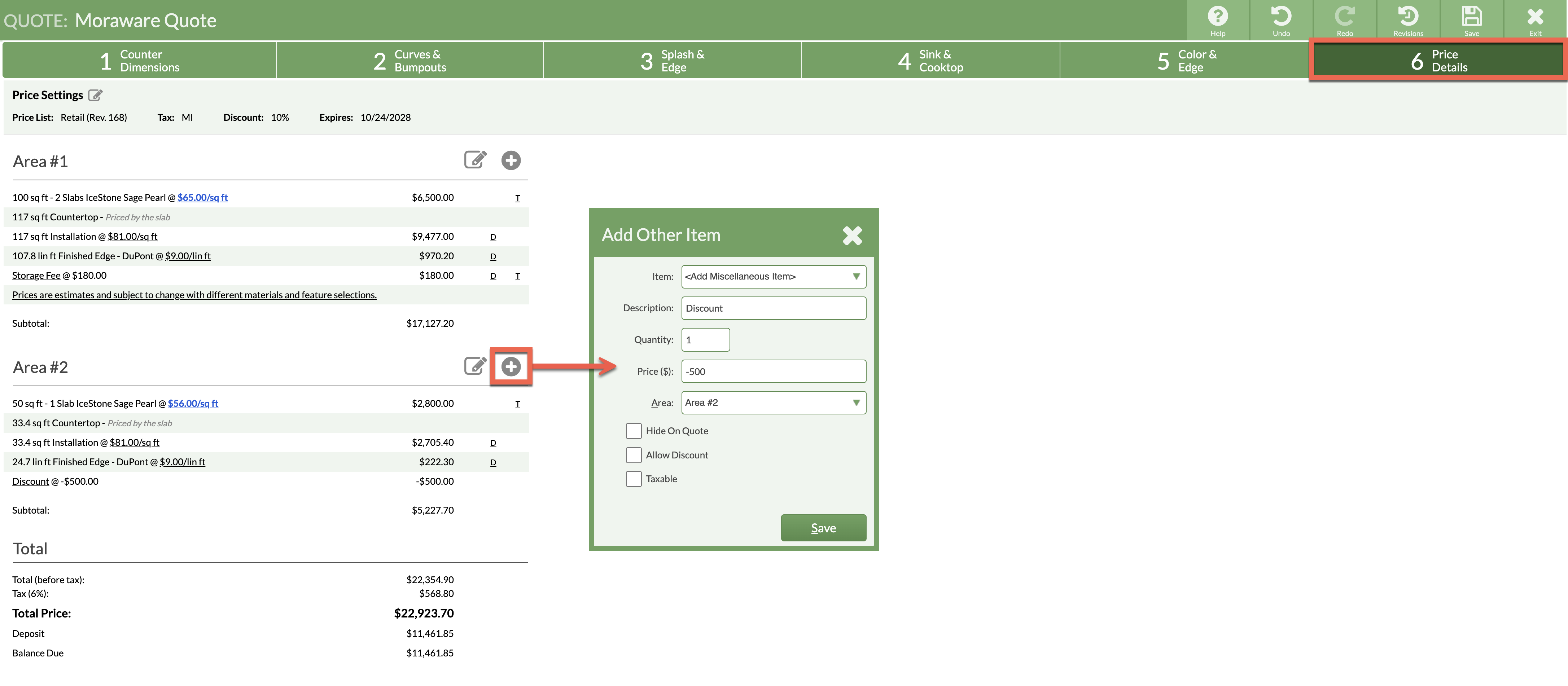
- Open the Quote >go to Step 6 > Click the Add icon to the right of the Area name > select Add Miscellaneous Item.
- Enter a Description your customer will see, such as "Builder Discount."
- Enter 1 for the Quantity, and the discount as a negative amount in Price, such as -500.
- Select the Area where the discount displays, or select None to list it separately under Other Items.
- Leave Hide On Quote > Save.