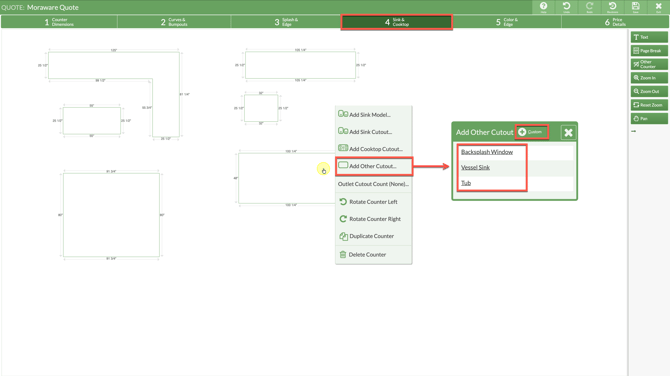
Are there custom cutouts you use when Quoting? Frequently used custom Cutouts can be added to CounterGo Price Lists as Other Cutouts. Adding the Other Cutouts to the Price Lists will add them to the pop-up menu when clicking on a countertop in Step 4, for quick Quoting.
The ability to add one-time Other Cutouts is also found in the Price List. By default the option Allow Custom Other Cutout is enabled, so the option appears when Quoting in Step 4. The option can be unchecked to remove the ability to add one-time Other Cutouts directly in a Quote.
If no Other Cutouts have been added to the Price List, and Allow Custom Other Cutout is not enabled, Other Cutouts will not appear in the pop-up menu when Quoting in Step 4.
Like Sink, Faucet, Cooktop and Outlet Cutouts, Other Cutouts can have different prices for different Material.
ADD AN OTHER CUTOUT TO THE PRICE LIST
- Click on Price Lists from the left side navigation > click on the name of the Price List to edit.
- Click the Edit Price List button to open the Price List in Edit mode.
- Click on Cutouts from the left side navigation > select Other Cutouts from the sub navigation.
- Check to Allow One-Time Other Cutouts to allow manual Other Cutouts be added directly to a Quote but not the Price List.
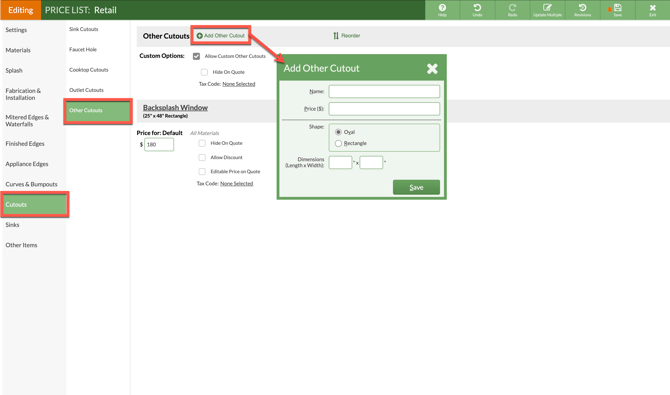
- Click the Add Other Cutout button to add a frequently used cutout to the Price List.
- Enter a Name, Price, Shape, and Dimensions > Save > Save the Price List.
EDIT OR DELETE AN OTHER CUTOUT IN THE PRICE LIST
- Click on Price Lists from the left side navigation > click on the name of the Price List to edit.
- Click the Edit Price List button to open the Price List in Edit mode.
- Click on Cutouts from the left side navigation > select Other Cutouts from the sub navigation.
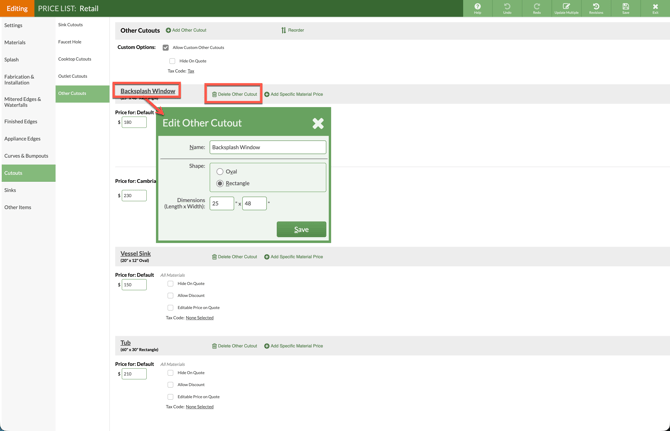
- To edit the Other Cutout, click on the underlined Other Cutout Name > make any necessary adjustments > Save.
- To delete an Other Cutout, click Delete Other Cutout to the right of the Name to remove. This will remove the option from the pop-up menu in Step 4 for any future Quotes made.
USE CUSTOM CUTOUTS IN A QUOTE
- Go to Step 4 of a Quote and click on a countertop.
- Select Add Other Cutout from the pop-up menu.
- Select an Other Cutout that has been entered in the Price List from the options listed. Or create a one-time Other Cutout by clicking the Add Custom icon and entering the information.
- Click and hold a cutout to move it on the countertop. Click once on a cutout to edit its properties, rotate it, duplicate the cutout, or delete it.