Are there custom cutouts you use when Quoting? Frequently used custom Cutouts can be added to CounterGo Price Lists as Other Cutouts. Adding the Other Cutouts to the Price Lists will add them to the pop up menu when clicking on a countertop in Step 4, for quick Quoting.
Add one-time Other Cutouts directly to a countertop in Step 4, without having to add it to the Price List. In order for one-time Other Cutouts to be available, Allow One-Time Other Cutouts is enabled by default.
If no Other Cutouts have been added to the Price List, and Allow Custom Other Cutout is not enabled, Other Cutouts will not appear in the pop-up menu when Quoting in Step 4.
If the Add Custom icon does not appear, contact your database Admin to have them enable the feature.
ADD AN OTHER CUTOUT WHEN QUOTING
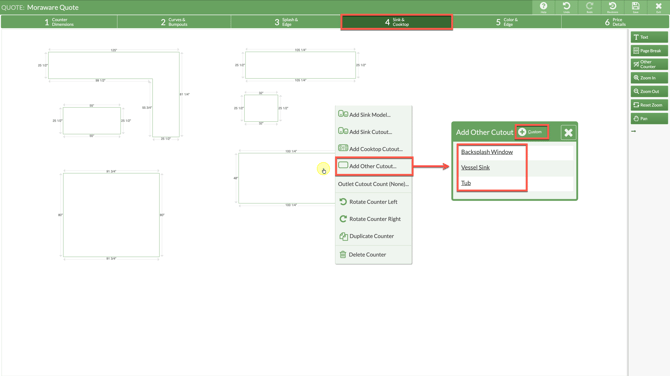
- Create or open a Quote > go to Step 4 and click on a countertop.
- Select Add Other Cutout from the pop-up menu.
- Select an Other Cutout that has been entered in the Price List from the options listed. Or create a one-time cutout by clicking the Custom icon and entering the information.
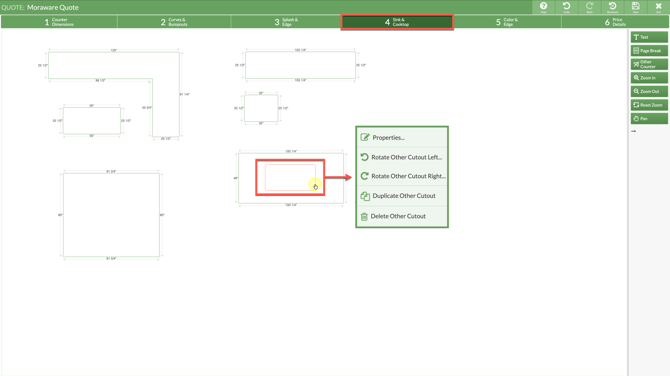
EDIT OR DELETE AN OTHER CUTOUT IN A QUOTE
- Click and hold a Cutout to move it on the countertop.
- Click once on a Cutout to edit its properties, rotate it, duplicate the cutout, or delete it.