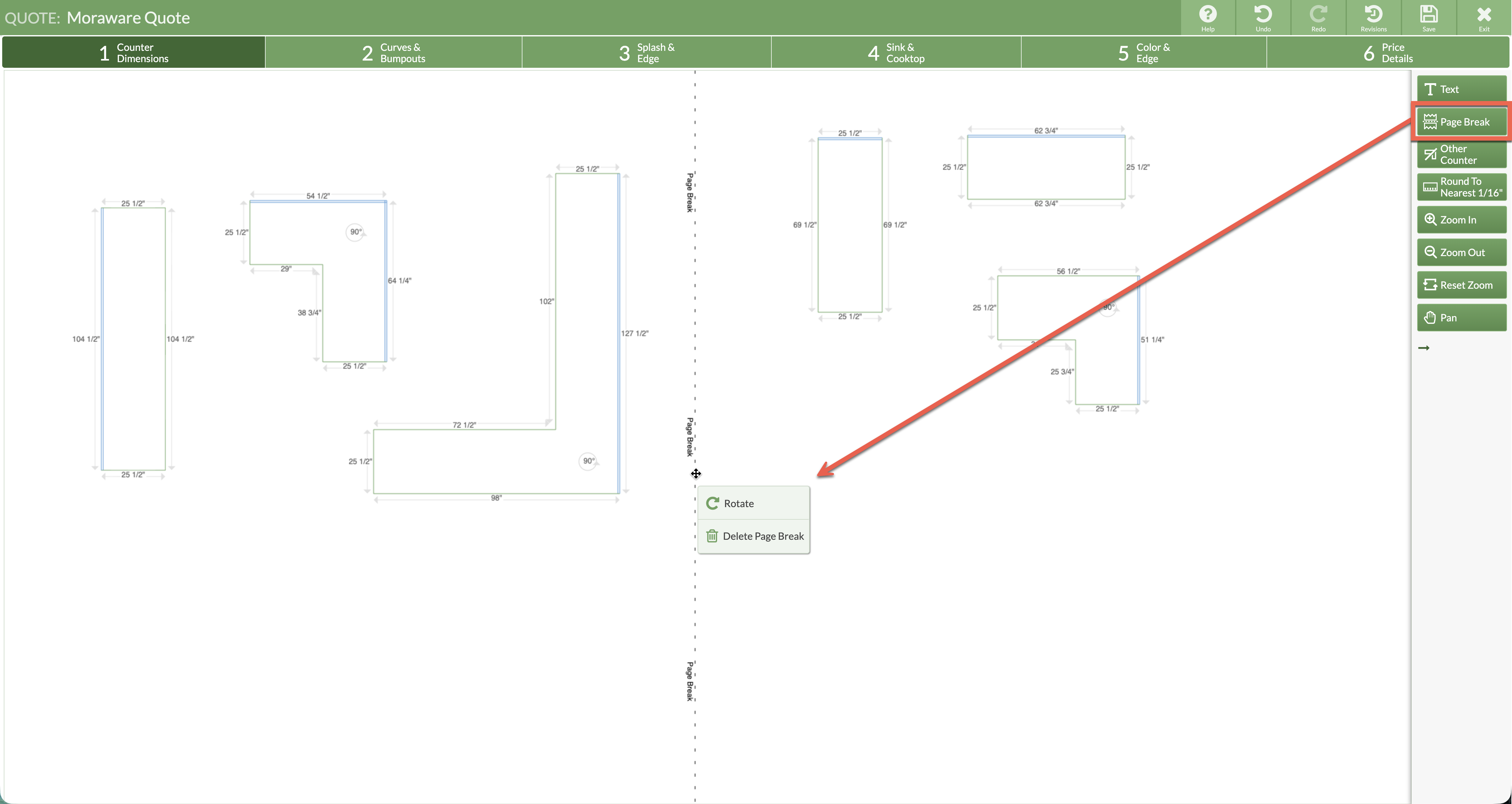
Do you have a large drawing with several pieces arranged left to right across your drawing space? Rotate a Page Break vertically to break up the countertop display when emailing or printing, without having to rearrange pieces top to bottom of the screen.
Page Breaks can be added at any time in Steps 1-4. They will appear horizontal, but can be clicked on to rotate. When adding vertical Page Breaks, information will be distributed left to right, top to bottom when printing or emailing.
-
Create or open a Quote Drawing.
-
Click the Page Break button from the right side navigation.
-
Position your cursor in the drawing space and click once to place the Page Break. It will be horizontal by default.
-
Click on the break and select Rotate from the pop-up menu.
-
Click and hold on the Page Break to position it in the drawing.
-
To remove a Page Break, click once on the dotted Page Break line > select Delete Page Break.