Are you wondering which feature to use to stop or reconnect CounterGo and QuickBooks? This article covers the available options and when to use them. Interrupting the connection between CounterGo and QuickBooks will not change or delete any information already in QuickBooks.
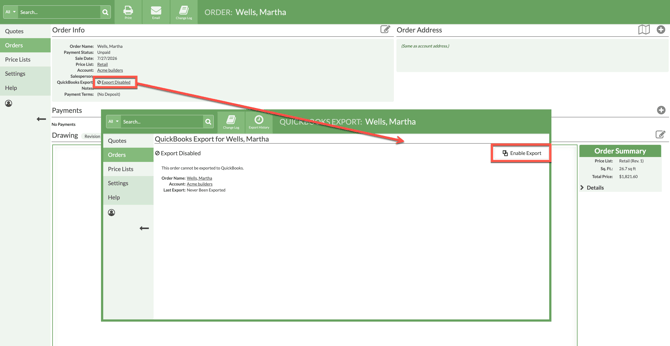
Enable / Disable an individual Order using the Enable/Disable buttons. An Order can be Disabled to prevent it from being exported to QuickBooks. If the need arises to send it to QuickBooks in the future, the individual Order can be re-enabled via the Enable button. This button only appears if the Order was previously disabled.
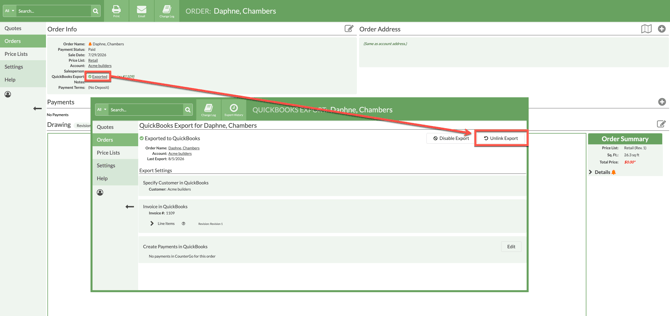
Unlink an individual Order that has already been exported to QuickBooks with the Unlink button. This breaks the connection from CounterGo to QuickBooks for that Order only. The order can be resent to QuickBooks as a new record. It will not overwrite the existing record in QuickBooks.
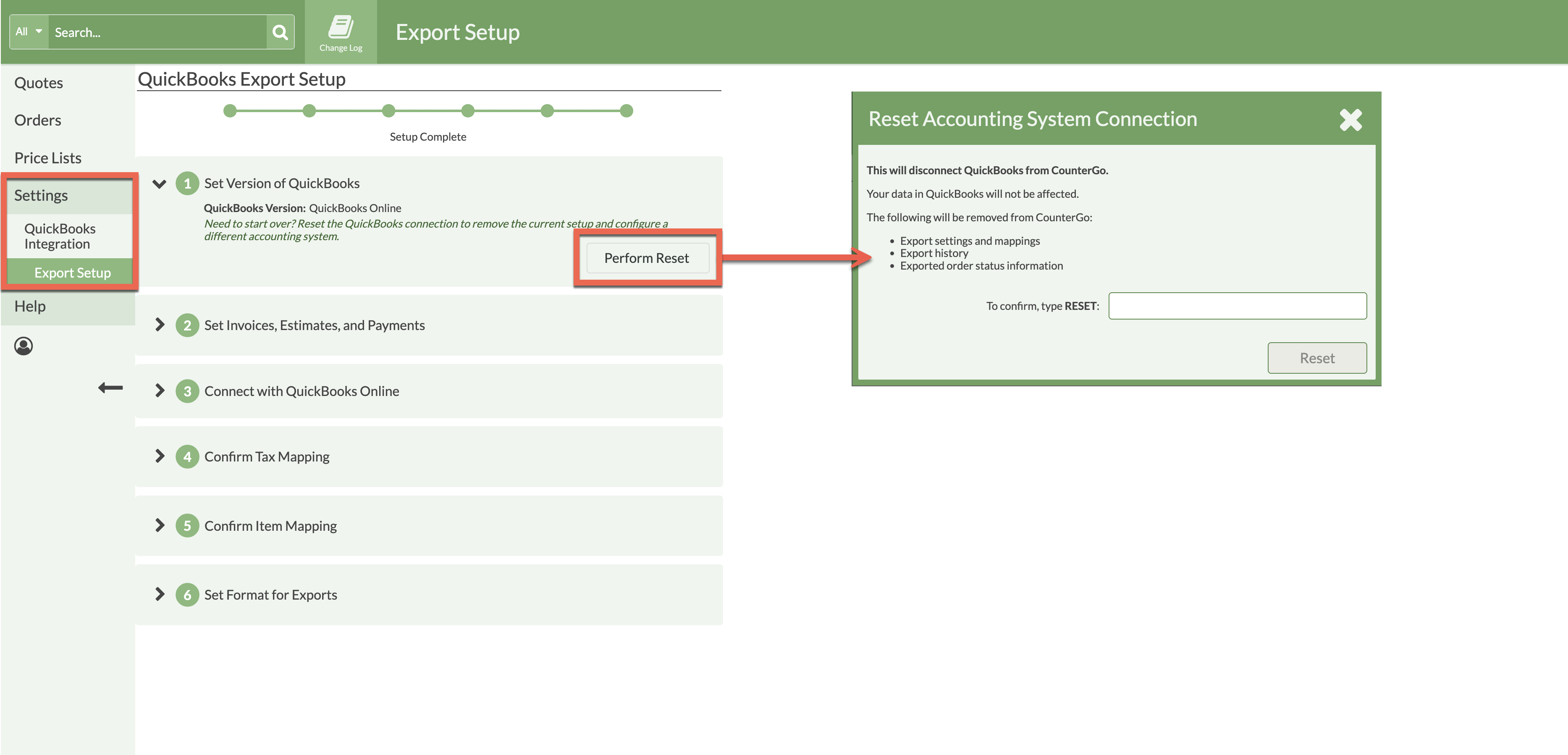
Reset the CounterGo/QuickBooks connection using the Perform Reset button. This is useful when transitioning from QuickBooks Desktop to QuickBooks Online. Previously exported Orders will be given a status of "Not Exported" even though they remain in your previous QuickBooks account. Performing the reset will disconnect all previously mapped products. You will be prompted to re-map products when connecting to a new instance of QuickBooks.
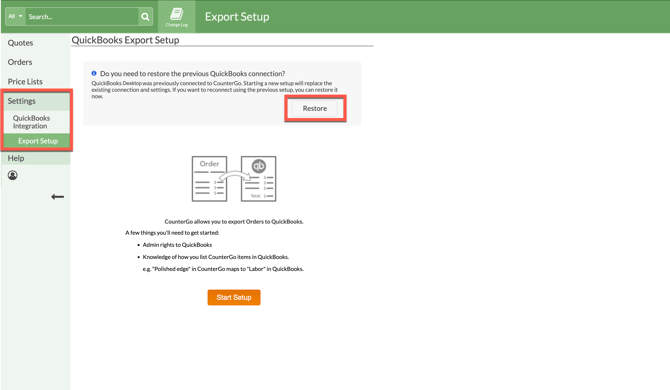
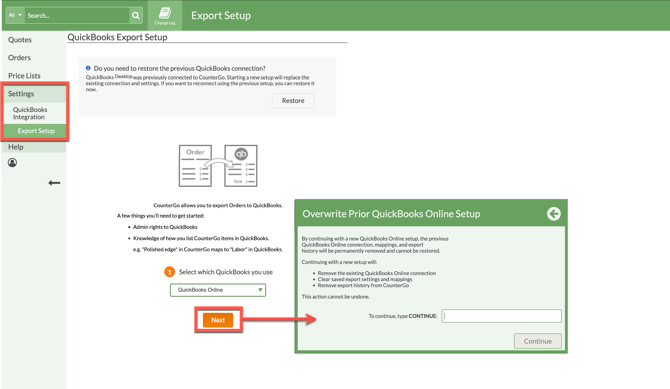
If you have accidentally Reset the CounterGo-Quickbooks connection, you can restore it using the Restore button in the first step of the QuickBooks Integration wizard.
ENABLE / DISABLE
-
To Disable an Order before it has been exported to QuickBooks, open an Order > click on the QuickBooks Export Status > click the Disable Exporting button.
- To Disable an Order that has been exported to QuickBooks, open an Order > click on the QuickBooks Export Status > click the Disable Export button.
-
To Re-Enable a disabled Order, open an Order > click on the QuickBooks Export Status > click the Enable Export button.
UNLINK
- To Unlink an Order that has been exported to QuickBooks, open an Order > click on the QuickBooks Export Status > click the Unlink Export button.
RESET / RESTORE
-
Reset a previous connection and establish a connection to a new QuickBooks account by going to Settings > QuickBooks Integration > Export Setup.
- Click the Perform Reset button > confirm Reset.
-
Click the Start Setup button > select the QuickBooks Version > Next > Confirm overwriting the previous connection.
-
To Restore a previous connection to QuickBooks by going to Settings > QuickBooks Integration > Export Setup.
-
Click the Restore button to reconnect the former QuickBooks setup.